


Authenticator App - 2FA Auth
4.6763.00 Reviews
App Specs
- Version
- 1.6
- Updated On
- License
- Free
- Downloads
- 1,000,000+
- Developer
- Universe Digital Hizmetler
- Categories
- Tools
- Platform
- Android
Screenshots
 Analysis by AppCompare
When I first started using a code generator, the part I worried about wasn’t the numbers on the screen; it was the possibility of locking myself out of an important account. Authenticator App - 2FA Auth is aimed at making that extra login step manageable: it keeps one-time codes together so I can retrieve them when a service asks for a second check. It’s a free tools app from Universe Digital Hizmetler, and I’d describe its appeal as practical rather than flashy.
What to expect from a code-based authenticator
An authenticator is different from a password manager or a text-message verification service. It generates a short-lived code for an account that already has two-factor authentication enabled. When I sign in, I enter my password and then the current code from the app. That extra step can help protect an account if its password has been exposed, though it does not make weak or reused passwords a good idea.
The first useful expectation to set is that installing this app alone does not secure every account on your phone. You need to turn on two-factor authentication in each service’s own security settings, then connect that account to the authenticator. The app can hold codes for multiple services, but each one needs its own setup. I’d start with an email account or another service that would be especially troublesome to lose, rather than trying to move everything at once.
Your first setup, one account at a time
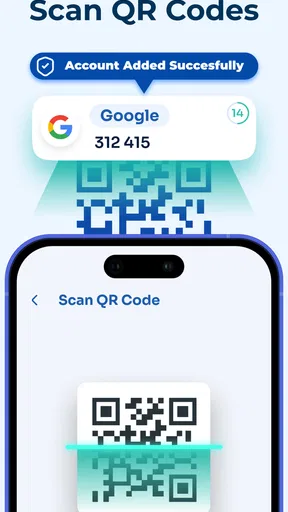
For a typical setup, I open the account’s security page, choose its authenticator-app option, and follow the service’s instructions to display a QR code. I then scan that code in the authenticator. If scanning isn’t convenient, the manual-entry option gives me another route. The exact screens and wording belong to the service I’m protecting, so I follow its prompts rather than assuming every account works identically.
Before finishing, I check that the code shown in the app is accepted by the account’s setup page. I also save any recovery codes the service offers somewhere separate from the phone. That second step is easy to overlook when setup seems to be working, but it matters if the phone is lost, damaged, or replaced. A code generator and an account’s recovery process solve different problems; I wouldn’t treat one as a substitute for the other.
The first successful login
The first satisfying test is signing in after setup: enter the account password, open the authenticator, and type the current code into the service’s verification box. The code changes, so I use the one currently displayed instead of saving it for later or sending it to someone. If the service accepts it, I know the connection is working and can repeat the process next time that account requests verification.
That routine is useful in ordinary situations, not just during a security scare. Imagine logging into an important account on a laptop while your phone is beside you: the password gets you to the second step, and the app supplies the code even if the laptop’s internet connection is the only connection available. I like that the code-generation step can work offline, but the website or service still needs to be reachable for the login itself.
Worth Reading Before You Choose

EA SPORTS FC Mobile 26 Is a Bigger Football Game, but It Takes Time

Flipboard Shows What News Apps Must Do Beyond the Feed

Switching to Android Auto Means Rethinking Your Driving Routine

Google Calendar Makes a Crowded Week Easier to Manage

Ludo King Makes the Most of the Minutes Between Plans

Baby Panda World Brings Quick Play to Modern Phones, but Its Game Library Feels Busy
Getting Started with Ease
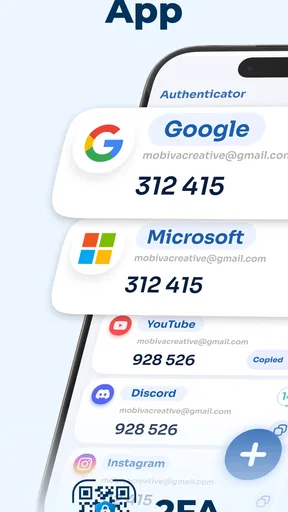
First things first, setting up the Authenticator App - 2FA Auth was a breeze. After a quick download from the app store, I was up and running in no time. The interface is clean and intuitive, which is a big win in my book. No one wants to struggle with a clunky app when they're just trying to protect their online accounts.
Once you fire up the app, it guides you through a simple setup process. You can easily add accounts by scanning a QR code or entering details manually. It's pretty straightforward and doesn't require a tech guru to figure it out. This makes it accessible for everyone, from tech newbies to seasoned pros.
Security Features That Stand Out
Now, let's talk about what this app is really about—security. The main feature here is two-factor authentication (2FA), which is a must-have in today’s digital landscape. It adds a second layer of security to your accounts, making it much harder for hackers to gain access.
One thing I really appreciated is the app's ability to work offline. No internet? No problem. You can still generate codes and log into your accounts without a hitch. This is particularly useful when you're traveling or in areas with spotty internet connections.
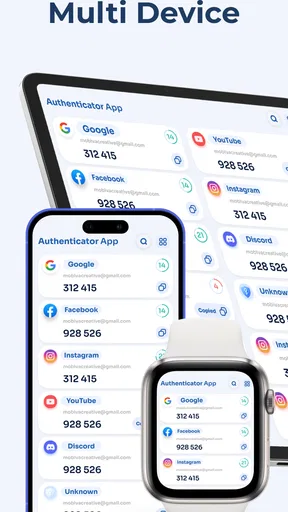
Another cool feature is the app's support for multiple accounts. Whether you're juggling personal and work accounts or just have a ton of services you want to protect, this app has you covered. It's simple to toggle between accounts, and everything is organized neatly.
Common points of confusion: codes, backups, and moving phones
A common worry is whether a code expiring means the account setup has failed. Usually, it simply means that code’s time window has passed; I try the next one displayed and make sure I enter it promptly. If a code is rejected repeatedly, I check that I selected the matching account entry and that I’m following the service’s current setup instructions. I avoid deleting an entry just because one login attempt went wrong, since that can make troubleshooting harder.
The backup option deserves deliberate attention. I found it reassuring to have a way to back up data, but I’d still treat a backup as sensitive: anyone who can use it may be able to access the codes it contains. I keep recovery information separate from the phone and think through how I would restore access before relying on a backup as my only safety net. When changing phones, I would not wipe the old device until I had confirmed that my accounts work with the new setup or that I can use each service’s recovery route.
Where this app fits among the alternatives
Compared with receiving codes by text, an authenticator can be more convenient when you have no mobile signal and avoids making each login depend on a message arriving. Compared with a hardware security key, it is easier to carry if you already keep your phone nearby, but it still leaves the phone itself as an important part of your login routine. Some services offer other verification methods, and for an account where maximum phishing resistance is the priority, I’d look carefully at those options rather than assuming a rotating code is the strongest choice.
This app makes the most sense for someone who wants a straightforward place to manage codes for personal and work accounts and is comfortable keeping a phone involved in sign-in. It may be the wrong fit if you want a security key-based workflow, need a carefully managed team system, or cannot risk depending on one device without a tested recovery plan. I’d also think twice before adding an account until I understood how I could regain access if my phone became unavailable.
Small habits that make the workflow safer
One practical tip is to label or identify entries clearly when adding several accounts, so I don’t mistake a work login for a personal one in a hurry. Another is to enable two-factor protection and test it while I’m already signed in on a trusted device, with recovery details at hand. I also avoid taking screenshots of QR setup codes or leaving them in an easily accessible photo library; those codes are part of the account’s security setup, not just a convenient picture.
For a busy day, the benefit is less about constantly opening the app and more about having the next step ready when a service asks for it. I might sign in to a work account on a browser, use the phone to retrieve the code, then put the phone away. If I travel, offline code generation is handy in places with unreliable connectivity, but I still plan for account recovery before leaving rather than assuming offline access can solve every login problem.
User Experience: Smooth Sailing
In terms of user experience, the app is a joy to use. The developers have clearly put a lot of thought into making it as user-friendly as possible. The design is sleek, with a minimalist feel that doesn't overwhelm you with unnecessary bells and whistles. Navigating through the app is a breeze, and everything is just a tap away.
One feature I found particularly handy is the ability to back up your data. Losing access to your 2FA codes due to a lost or broken device can be a nightmare, but with this app, you can create backups to ensure your codes are safe and sound.
Who I’d recommend it to—and who should pause
I’d recommend it to a first-time user who wants to move beyond text-message codes and is willing to spend a few minutes setting up accounts carefully. Its approachable setup, manual entry as an alternative to scanning, and support for multiple accounts make it easier to build a simple routine. The app has a 4.6 average from around 33,000 ratings, and it has been installed over 500,000 times, so it is not an obscure option in the category; those figures are context, not a guarantee that it will suit every person.
I’d pause if you regularly switch phones, share devices, or need a process administered across a team. In those cases, the important question is not just how quickly a code appears, but how account ownership and recovery will work when someone leaves or a device disappears. I’d compare the recovery and device-management options of any candidate before moving sensitive work accounts. For a personal setup, I’d begin with one lower-risk account, learn the flow, then add more only after confirming I understand the backup and recovery steps.
Compatibility, cost, and the next sensible step
The app is free to install, is rated for Everyone, and its current version is 1.2, with Android 7.0 or later required. Optional in-app purchases range from $0.99 to $39.99 per item, so I’d review any purchase screen carefully and avoid assuming that paid options are necessary for basic code generation. The app is also listed for iOS, which can make it relevant if your household or work routine spans different mobile platforms.
My next step would be to choose one account I genuinely want to protect, enable authenticator-based verification in that service, connect it, and complete a test login while keeping the service’s recovery details safe. Then I’d decide whether the same approach suits my other accounts. That gradual approach is more useful than importing everything in a rush, because it gives me a chance to catch a mistaken entry or an unclear recovery plan before it affects an account I depend on.
Compatibility and Performance
The app is available on both Android and iOS, so no matter your device preference, you’re covered. I tested it on both platforms, and it performed flawlessly. I didn’t experience any lag or crashes, and the app was responsive throughout my testing.
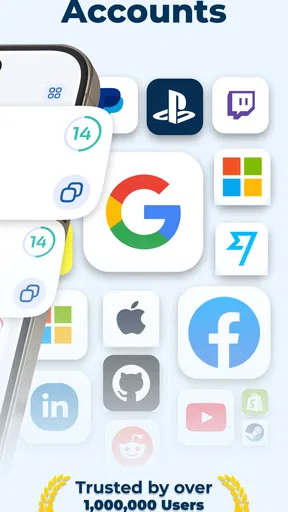
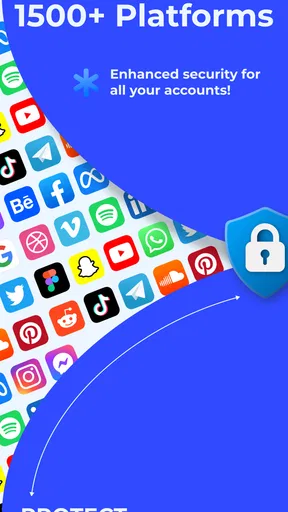
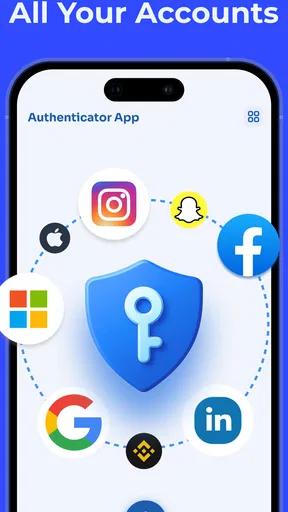
It integrates seamlessly with a variety of services like Google, Facebook, Dropbox, and more. This means you can secure multiple accounts with ease, and the app constantly updates to support new services as they become available.
Final Thoughts
At the end of the day, the Authenticator App - 2FA Auth is a solid choice for anyone looking to boost their online security. With its easy setup, user-friendly design, and robust security features, it ticks all the right boxes. Whether you're a tech enthusiast or just someone who wants peace of mind, this app is worth considering.
So, if you're ready to take your online security to the next level, give this app a whirl. It might just be the best decision you make for your digital life. Happy securing!
Pros
- Supports multiple accounts easily.
- User-friendly and intuitive interface.
- Quick setup with QR code scanning.
- Works offline for added security.
- Compatible with major platforms.
Cons
- No cloud backup for codes.
- Limited customization options.
- No biometric authentication support.
- Occasional sync issues reported.
- Lacks a desktop version.
FAQs for Authenticator App - 2FA Auth
What is the primary purpose of the Authenticator App - 2FA Auth?
The Authenticator App - 2FA Auth is designed to enhance the security of your online accounts by providing two-factor authentication (2FA). It generates time-based, one-time passcodes (TOTPs) that you use in addition to your regular password, making it significantly harder for unauthorized users to access your accounts.
How do I set up 2FA with this app on my accounts?
To set up 2FA with the Authenticator App, you generally need to log in to the website or service you wish to secure and navigate to its security settings. Select the option to enable two-factor authentication, and you’ll be given a QR code. Scan this code with the app to generate your unique passcodes.
Is the Authenticator App compatible with all types of accounts?
The Authenticator App is compatible with a wide range of services and accounts, including major platforms like Google, Facebook, and Microsoft. However, compatibility depends on whether the service supports TOTP-based 2FA. Always check the specific service's documentation to confirm compatibility.
How secure is the Authenticator App in protecting my credentials?
The Authenticator App uses industry-standard encryption to protect your credentials and generated passcodes. Since the app does not store your passwords, and the codes change frequently and are time-based, it provides a robust layer of security against unauthorized access.
What should I do if I lose access to my Authenticator App?
If you lose access to the Authenticator App, you should immediately use any available backup codes provided by the service you’re trying to access. Most services offer recovery options such as backup codes, email verification, or phone number verification, which can help you regain access.


